Ready Steady Websites® Email
To access your email through the web, simply go to rswemail.com using the login details provided on email when we set up your account.
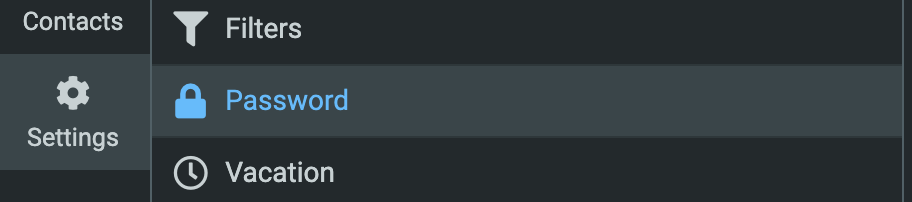
When you login for the first time, we do recommend that you change your password by going to Settings > Password.
Setting Up Your Email Application (Client)
The following details are totally optional and based on your preference to set up your mailbox with an email application.
What is an email application (client)?
An email application, often called an email client is the software you use on your computer or your smartphone to view your email. For example on a Mac, you're probably using Mac Mail and on an iPhone you're using "Mail".
In order to set this up, you need to add in the settings on your computer and phone. Those details are below.
Default IMAP Settings
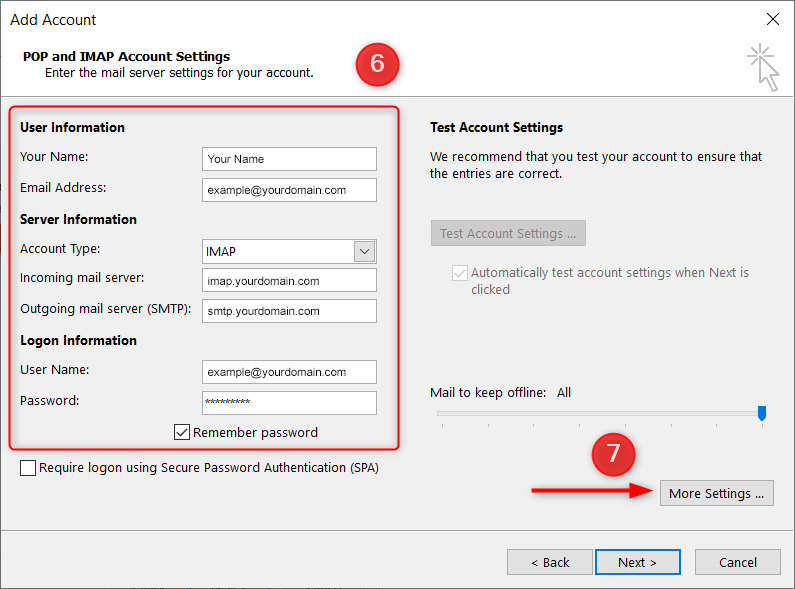
Throughout this tutorial, you will learn how to configure IMAP over your preferred mail clients using the below criteria. Using IMAP allows you to keep a copy of your email centrally in your RSW Email mailbox, but will allow you to use multiple email clients at once.
Here are the basic details you need for each mailbox, if you're not sure what to do, just jump to our configurator below.
Please ensure that yourdomain.com below is replaced with your domain name e.g. we'd replace imap.yourdomain.com with imap.readysteadywebsites.com.
You do not need www. or https:// or http:// just the domain name itself.
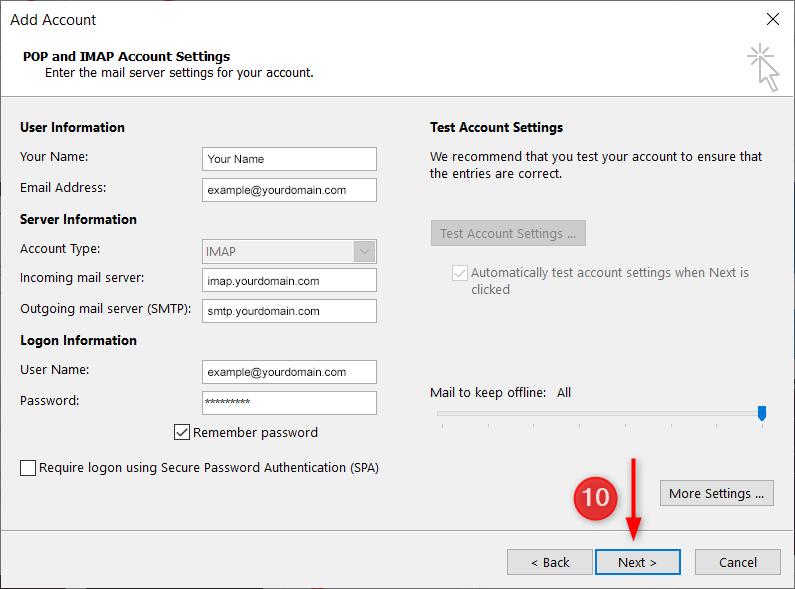
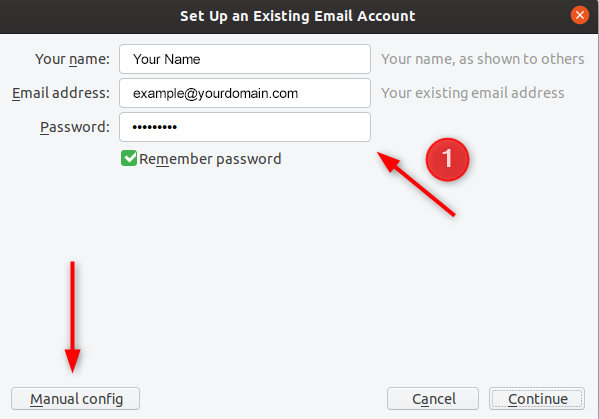
Your Name: Your Name or Business Name
Username: Your Mailbox Email Address
Password: Your Mailbox Password
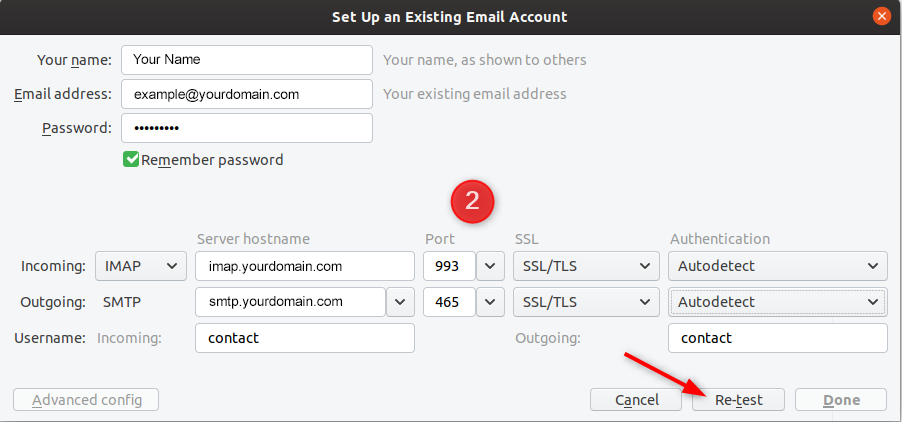
Account Type: IMAP
Incoming Mail Server: imap.yourdomain.com
Outgoing Mail Server: smtp.yourdomain.com
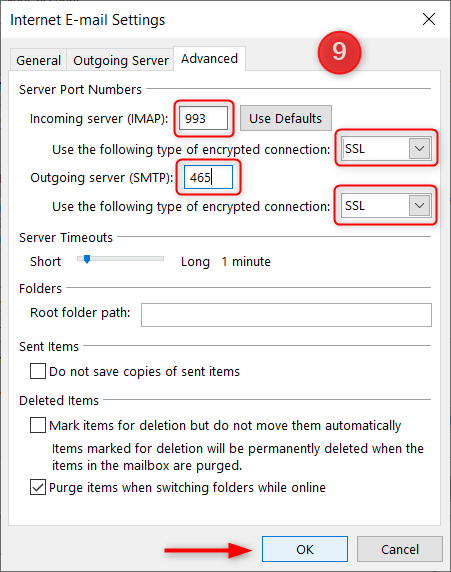
Incoming Mail Server (IMAP) TCP Port: 993 (SSL)
Outgoing Mail Server (SMTP) TCP Port: 465 (SSL)
Not sure what details to change?
That's ok... use our configurator!
Just enter the details we sent you via email here and we'll give you the settings specific to the email address you provide.
Setting up on specific apps
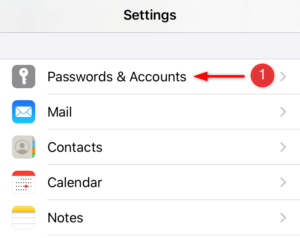
- Visit Settings and tap Passwords and Accounts. In this example, we are using the Mail app for iOS 13.
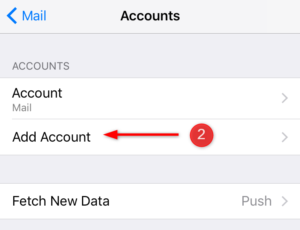
- Next, tap Add Account.
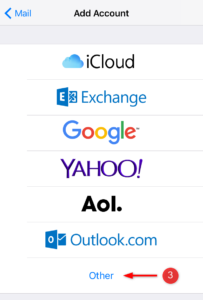
- Select Other at the bottom.
- Tap Add Mail Account.
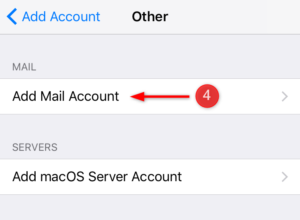
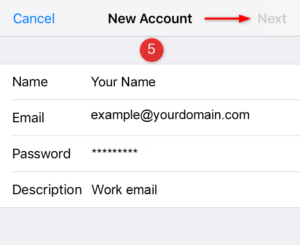
- In the next screen, enter the information using the Default IMAP Settings above...
Name: Your Name or Business Name
Email Address: Your Mailbox Email Address
Password: Your Mailbox Password
Description: Anything you’d like!Once done, click Next.
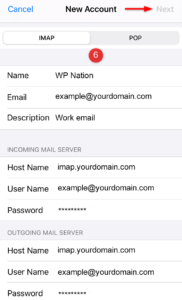
- Next, enter the following information, the previously entered information should already be pre-filled from the last section. Make sure to swap yourdomain.com with your actual web domain.
Email Protocol: IMAP
Incoming Mail ServerHost Name: imap.yourdomain.com
Username: Your Mailbox Email Address
Password: Your Mailbox Password
Outgoing Mail Server
Host Name: smtp.yourdomain.com
Username: Your Mailbox Email Address
Password: Your Mailbox PasswordOnce done, tap Next.
- On the next screen, you will need to ensure that the Mail feature is enabled and then hit Save to save your configurations.